How to Generate PDFs From Salesforce: The Complete Guide (2026)
Generating a PDF from Salesforce should be one of the fastest things your team does. Your CRM already holds every piece of data that belongs in the document: the client name, the deal value, the product details, the payment terms. Converting that data into a finished, formatted PDF should take seconds.
For most Salesforce teams, it takes far longer — because Salesforce does not include a native PDF generator as a core platform feature. Generating a PDF from Salesforce requires a document generation tool, and choosing the right one determines whether your data stays inside your org or gets sent to an external server every time a document is produced.
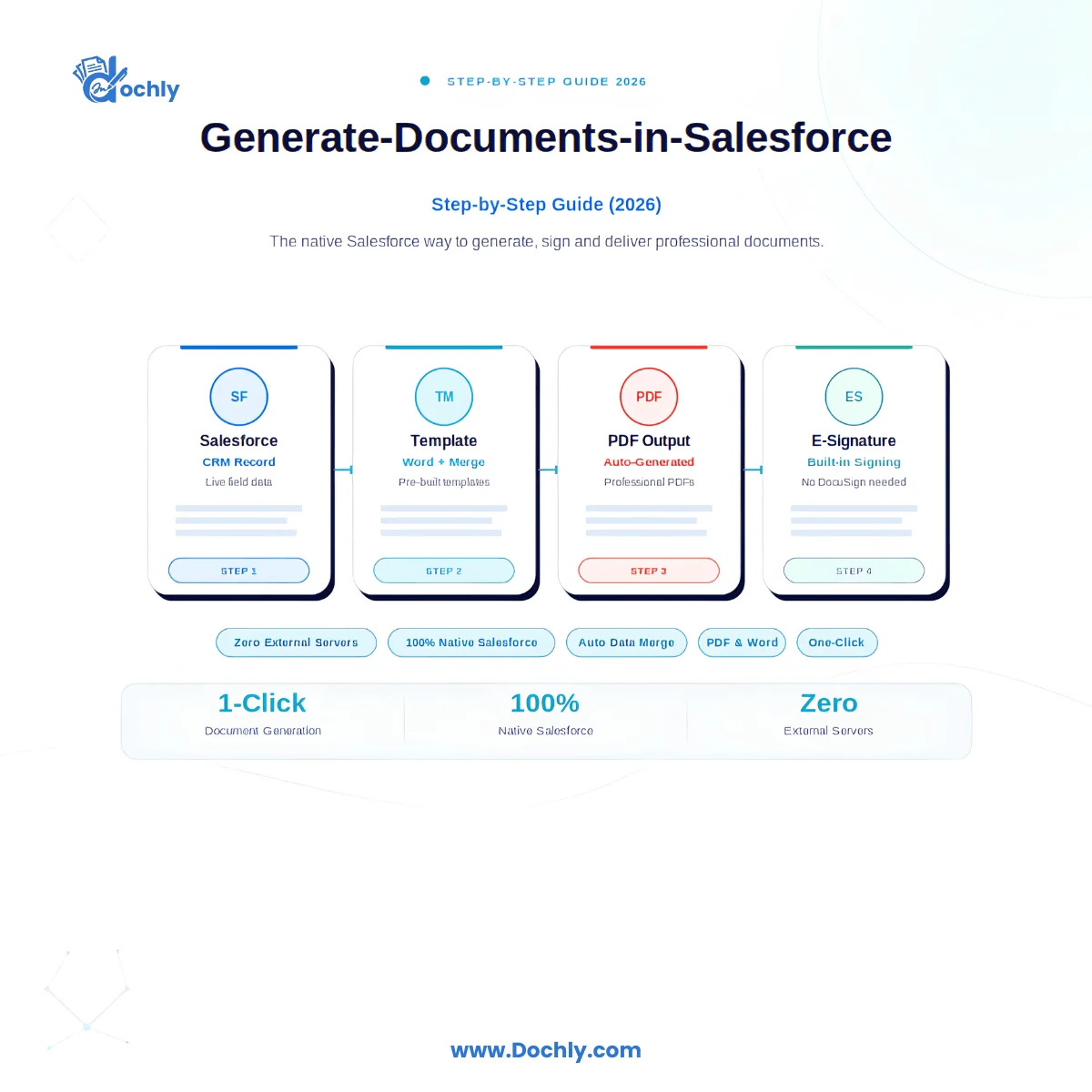
This guide covers exactly how to generate PDFs from Salesforce, the methods available, the difference between native and integration-based approaches, and the complete step-by-step process. For a broader overview of document generation in Salesforce, see our guide on how to generate documents in Salesforce step by step.
Does Salesforce have a built-in PDF generator?
Salesforce does not have a built-in PDF generator as a core platform feature. Visualforce pages can be rendered as PDFs and some Salesforce features generate basic PDF outputs, but these are not usable as a general document generation solution for business documents like contracts, invoices, and proposals.
To generate PDFs from Salesforce at the quality and flexibility required for business use, you need a dedicated document generation app installed in your org. These apps are available on the Salesforce AppExchange and range from integration-based tools that process PDFs on external servers to fully native apps built on Apex and Lightning that generate PDFs entirely inside your Salesforce trust boundary.

Native vs integration-based PDF generation from Salesforce
The most important decision when choosing how to generate PDFs from Salesforce is whether the tool processes documents inside your org or routes data to an external server.
Integration-based PDF generation works by extracting data from your Salesforce org via API, sending it to the tool’s own cloud server, generating the PDF there, and returning it to Salesforce. Every time a user generates a PDF, your CRM data leaves your Salesforce security boundary. For teams in regulated industries, this creates compliance exposure. For all teams, it creates an integration dependency that breaks every time Salesforce releases a major update.
Native PDF generation runs entirely inside your Salesforce org using Apex. The data never leaves the platform. The PDF is generated inside your org and stored as a Salesforce File attached to the originating record. Field-level security applies automatically because the generation process runs as the triggering Salesforce user, with full respect for your sharing rules and permission sets.

Native PDF generation processes documents inside your Salesforce trust boundary. Integration-based tools route your data through an external server on every generation event.
| Factor | Integration-based | Native (Dochly) |
|---|---|---|
| Where PDF is generated | External cloud server | Inside your Salesforce org |
| Data leaves Salesforce | Yes — on every generation | Never |
| Field-level security | Requires separate config | Automatic — uses Salesforce model |
| Breaks on SF releases | API maintenance required | Native managed package |
| DPA / compliance overhead | Required | Not required |
| Audit trail in Salesforce | External records only | Full trail inside your org |
Read more: What Is Salesforce Document Generation? The Complete Guide (2026)
How to generate a PDF from a Salesforce record: step by step
Generating a PDF from a Salesforce record follows six steps: install a document generation app, build a PDF template, connect it to a Salesforce object, add a generation button, generate and verify the PDF, then distribute or send for signature. Most teams complete their first working PDF generation within a few hours of setup.
Install a document generation app from the AppExchange
Search the Salesforce AppExchange for a document generation app that supports native PDF generation. Install it into your Salesforce org and complete the post-installation configuration steps. For a native tool like Dochly, the setup process takes under 30 minutes for a standard implementation.
Build a PDF template
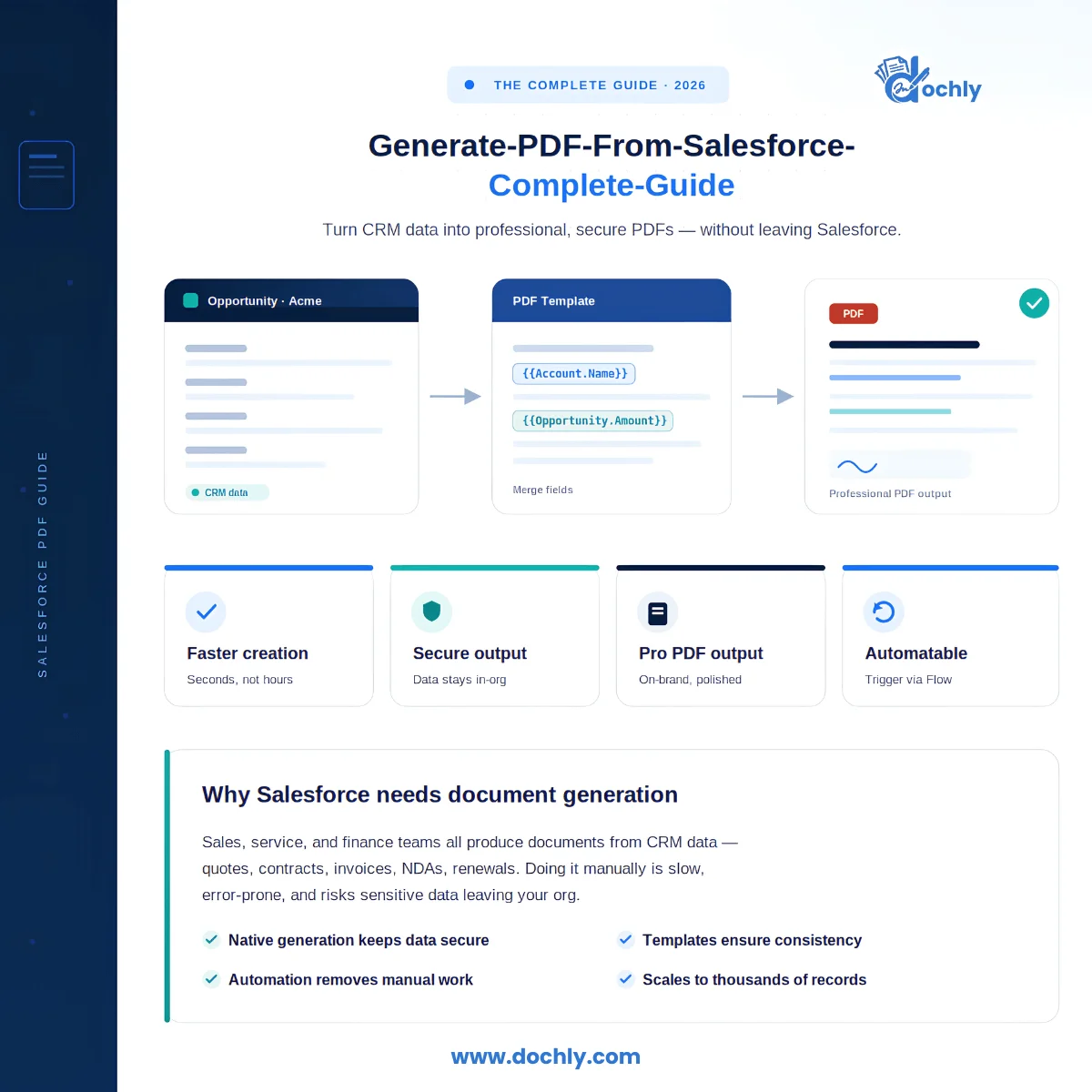
Create a template that defines the layout and content of the PDF. Insert merge fields wherever Salesforce data should appear: account name, contact details, product line items, pricing, dates, and any custom fields specific to your business. For documents with variable-length sections like invoice line items, add a repeat block to generate one row per child record.
Connect the template to a Salesforce object
In the template settings, specify which Salesforce object the template generates PDFs from. Set the output format to PDF, configure the file naming convention using merge fields, and set the storage destination to attach the generated PDF to the originating record automatically.
Add a PDF generation button to the record page
Add a custom button or action to the Salesforce page layout for the relevant object. Configure the button to call the document generation action with the correct template. When a user clicks the button on a record, the tool generates a PDF from that record’s data using the connected template.
Generate and verify the PDF
Open a Salesforce record and click the generation button. The tool reads the record’s field values, merges them into the template, generates the PDF, and attaches it to the record in the Files related list. Open the generated PDF and verify that every merge field resolved correctly and the formatting matches the template.
Distribute or send for signature
Once the PDF is attached to the Salesforce record, it can be emailed directly from the record, shared via link, downloaded, or sent for e-signature. If your document generation tool includes native e-signature, the signing workflow can be initiated directly from the generation step without any separate login or platform switch.

After clicking the generation button, the finished PDF attaches automatically to the Salesforce record’s Files related list — named correctly, no manual upload required.

Generating PDFs automatically from Salesforce Flows
Manual PDF generation works well for individual records. For recurring, high-volume PDF creation, automation through Salesforce Flow eliminates manual triggers entirely.
A record-triggered Flow fires when a specific condition is met on a Salesforce record: an Opportunity moved to Closed Won, a contract record approved, an invoice record created, a case marked resolved. The Flow calls the document generation action as one of its steps, passing the template ID and the record ID. The PDF generates, attaches to the record, and the Flow continues with the next steps — emailing the PDF to the client, sending a notification, or triggering a signing workflow.
For recurring batch PDF generation — monthly invoice runs, quarterly renewal notices, annual compliance letters — a scheduled Flow fires at a set time. It queries the relevant records, loops through each one, and triggers PDF generation for the entire batch. The PDFs generate asynchronously so the Flow does not time out on large batches.

A record-triggered Flow generates a PDF automatically when an Opportunity moves to Closed Won — no user action required.
A scheduled Flow set to run on the first of each month can generate all monthly invoices, attach them to the correct records, and trigger delivery to recipients before anyone on the team has started their day.
Generating PDFs in bulk from a Salesforce list view
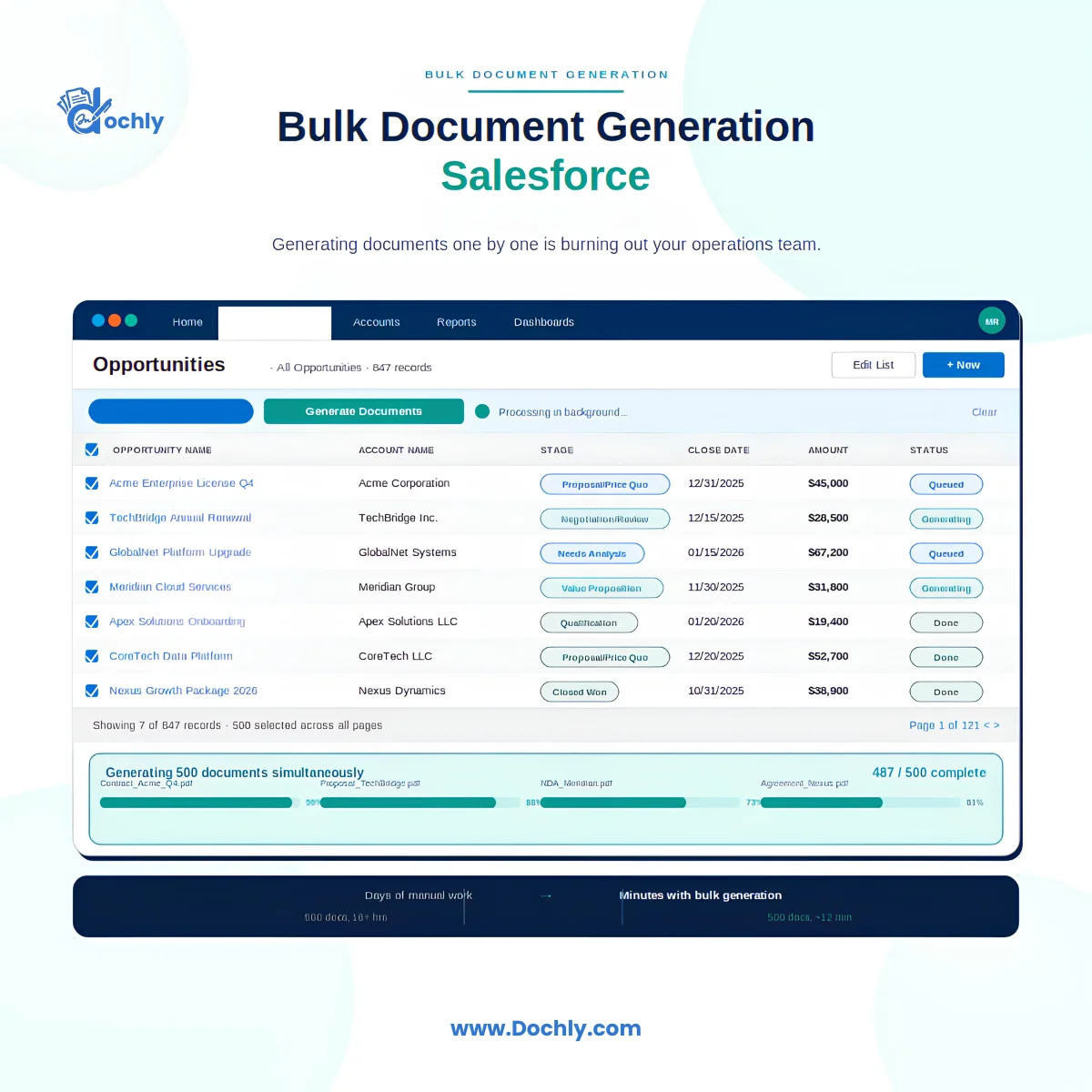
Bulk PDF generation from a list view is the manual version of batch generation. Select multiple records from a list view, click the bulk generation button, choose the template, and confirm. The tool generates a separate PDF for each selected record using that record’s live Salesforce data, and attaches each PDF to the correct record automatically.
A batch of 200 invoices that would take hours to produce one at a time typically completes in a few minutes of background processing. Bulk list view generation does not require any admin configuration beyond the initial template setup. Any user with the generate documents permission can run a bulk generation job from any list view the template is associated with.
For a detailed look at how bulk generation works and the time it saves at scale, see our guide on bulk document generation in Salesforce.

PDF quality and formatting considerations
The quality of the generated PDF depends on both the template quality and the generation method.
Formatting fidelity. Native tools that generate PDFs inside Salesforce using Apex-based rendering produce more consistent formatting than integration-based tools that rely on external conversion services. Complex layouts with headers, footers, multi-column sections, and precise image positioning render more accurately with native generation.
Font embedding. When building Word-based templates, use fonts that are standard or widely available. Unusual fonts that are not embedded in the PDF may render incorrectly on the recipient’s device. System fonts like Calibri, Arial, and Times New Roman are safe choices.
Image resolution. Logos and images in PDF templates should be high resolution but optimised in file size. A 300 DPI PNG or vector SVG produces a sharp logo. A low-resolution JPEG produces a blurry one. Large unoptimised images slow PDF generation and produce oversized output files.
Test on multiple devices. Always open generated PDFs on at least two different devices or PDF readers before deploying a template to production. Formatting that looks correct in one reader may render differently in another, particularly for complex multi-column layouts or embedded fonts.
Storing generated PDFs in Salesforce
With a native document generation tool, generated PDFs are stored as Salesforce Files on the record they were generated from. Every PDF is accessible from the Files related list on the record, searchable in Salesforce, and subject to your existing record access and sharing settings.
No manual file management is required. The PDF does not need to be downloaded, renamed, and re-uploaded. It is already in Salesforce, already named correctly using the naming convention configured in the template, and already associated with the correct record.
For teams that also need PDFs stored in external systems — Google Drive, OneDrive, Dropbox, or SharePoint — native document generation tools with a storage connector can push generated PDFs to those locations simultaneously while keeping a copy in Salesforce. Dochly Storage supports Google Drive, OneDrive, and Dropbox connectors that sync generated documents automatically without any manual export step.
Frequently asked questions about generating PDFs from Salesforce
Generating PDFs from Salesforce is straightforward once the right tool is in place. The architecture of that tool — whether it processes PDFs natively inside Salesforce or routes data through an external server — determines your compliance posture, maintenance overhead, and long-term cost.
For the full document generation picture, see our guide on how to generate documents in Salesforce step by step, or visit Dochly document generation to see what native PDF generation looks like inside a fully native Salesforce app.